Hosts
The HOSTS tab provides an easy way to monitor host packages and update status. Hosts that are registered to Repomanager regularly send their system and package information to the server.
Importing client hosts into Repomanager is possible by using a client-side tool like linupdate.
Hosts overview
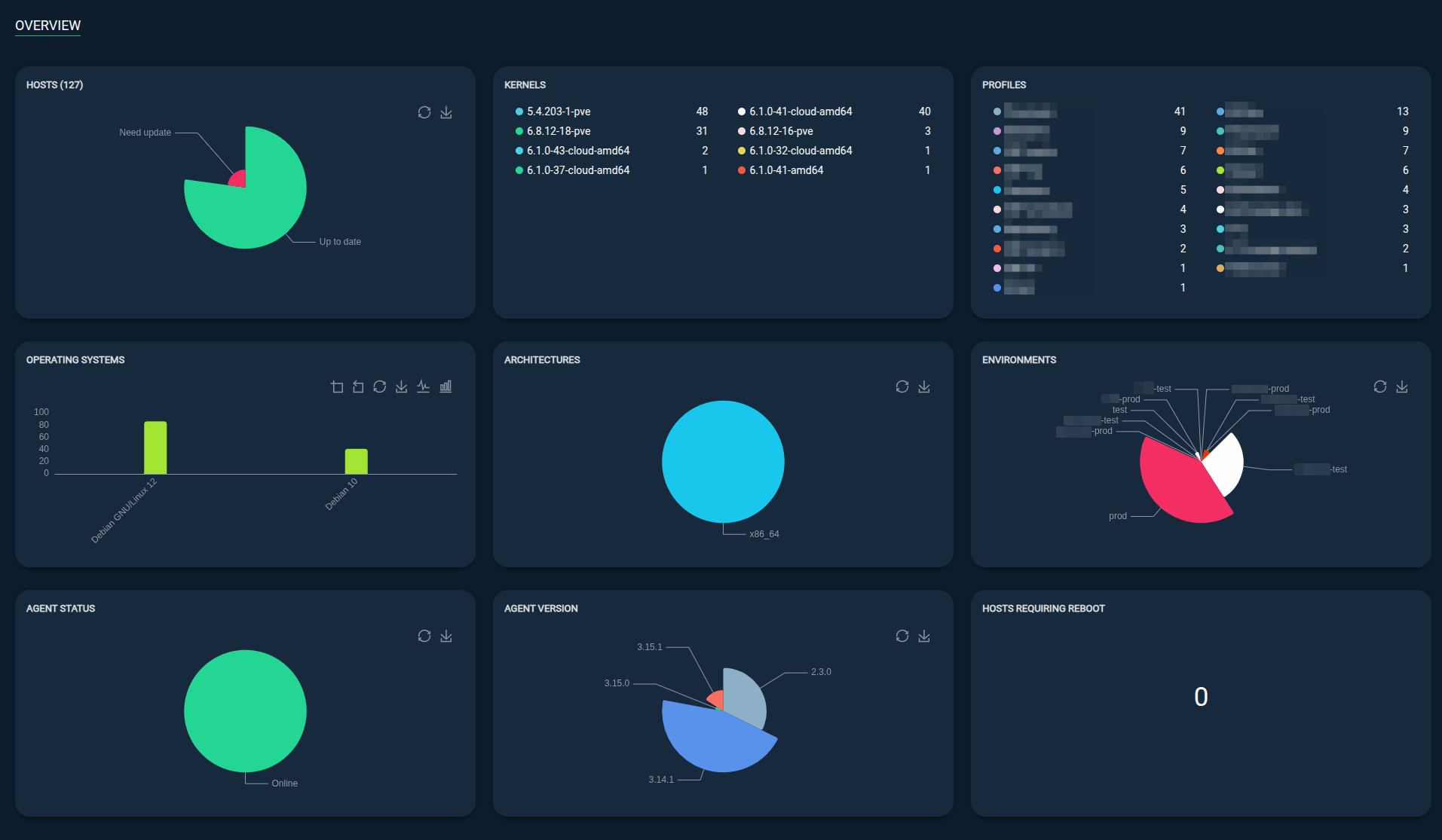
Host dashboard
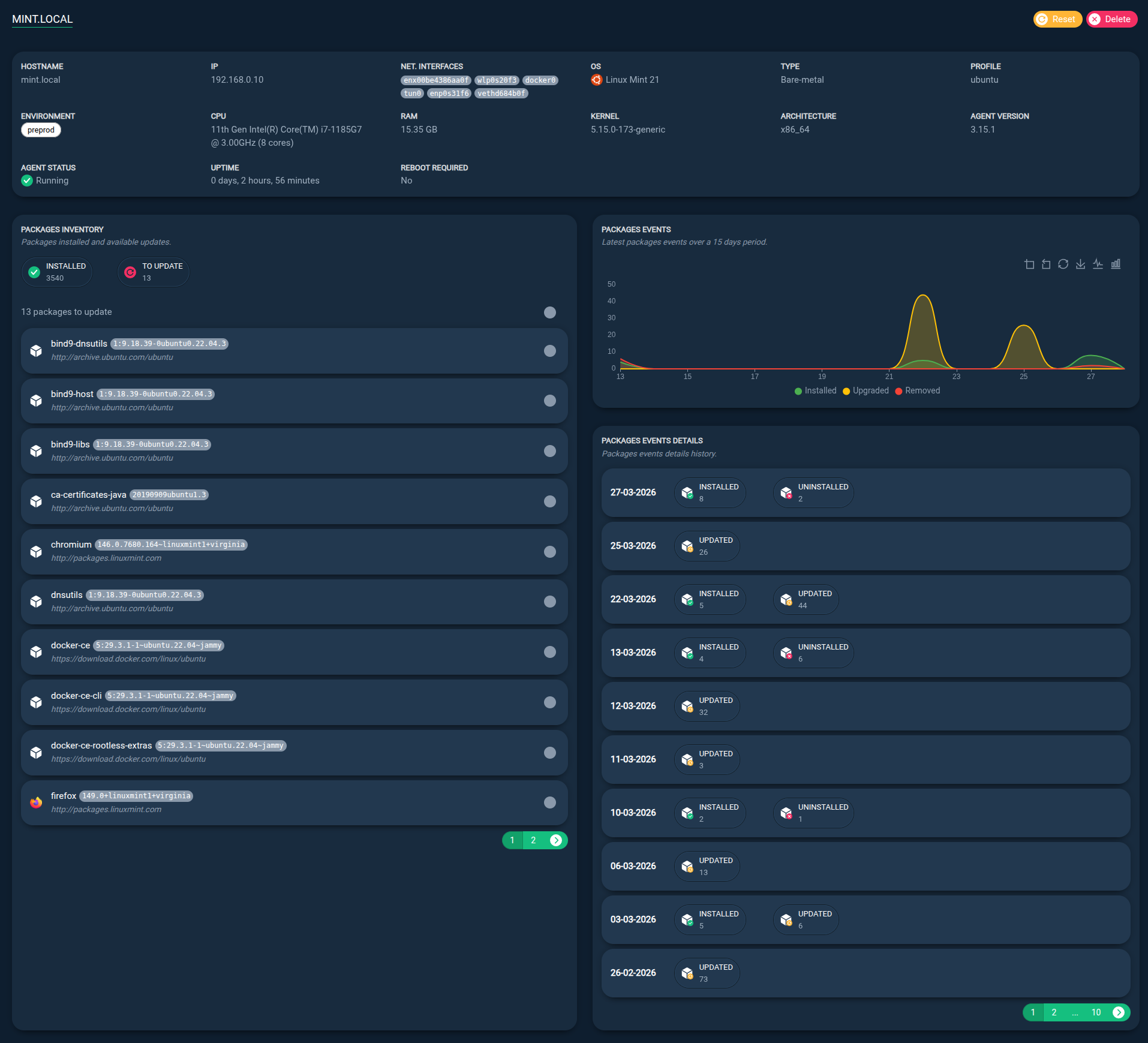
Register a new host
The host must execute the linupdate command line to register to Repomanager.
Check the linupdate documentation:
- Install and start using linupdate: Documentation
- Enable reposerver module and register a host using linupdate, see Quick setup example
Reset a host
Resetting a host deletes all known data about it.
From the HOSTS tab:
Step 1: Select the host(s) you want to reset.

Step 2: Click the Reset button.
Delete (unregister) a host
From the HOSTS tab:
Step 1: Select the host(s) you want to delete.
Step 2: Click the Delete button.
Request a host to send general information
Info
The general information includes the host name, OS version, kernel version, architecture, the profile and environment, etc.
Each host sends this information to Repomanager every hour, but you can force it to be sent immediately.
From the HOSTS tab:
Step 1: Select the host(s) you want to request.
Step 2: Cick the Request general information button.
Request a host to send package information
Info
The package information includes the list of installed packages, their versions and their history (installed, updated, removed).
Each host sends this information to Repomanager every hour, but you can force it to be sent immediately.
From the HOSTS tab:
Step 1: Select the host(s) you want to update.
Step 2: Use the Request package information button.
It can take some minutes to be sent depending on the number of packages installed on the host.
Request a host to execute packages update
From the HOSTS tab:
Step 1: Select the host(s) you want to update.
Step 2: Click the Update packages button.
Step 3: Select either All packages or Specific packages to specify which packages you want to update.
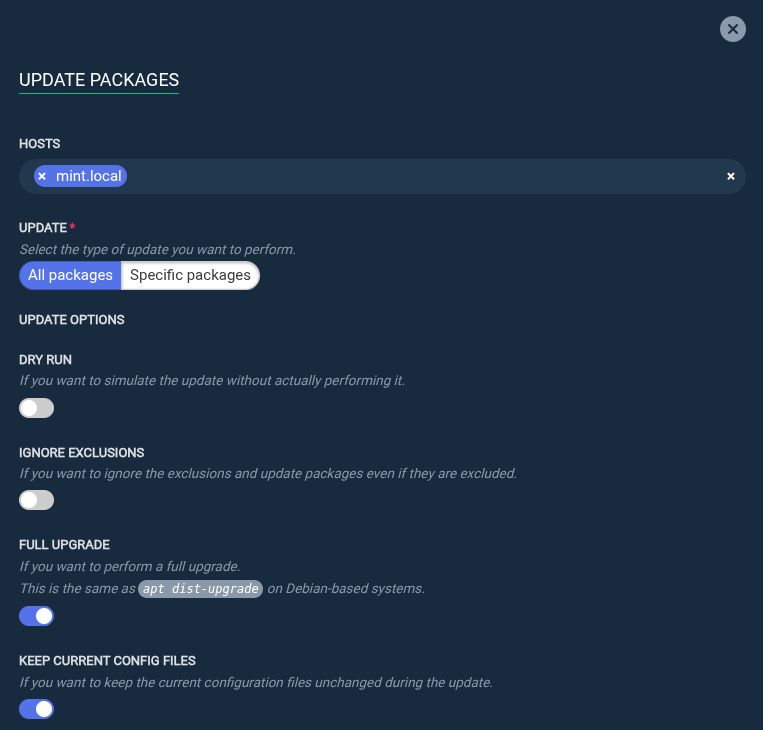
Info
You can also select specific packages to be updated by going to the host details page and selecting the packages you want to update.
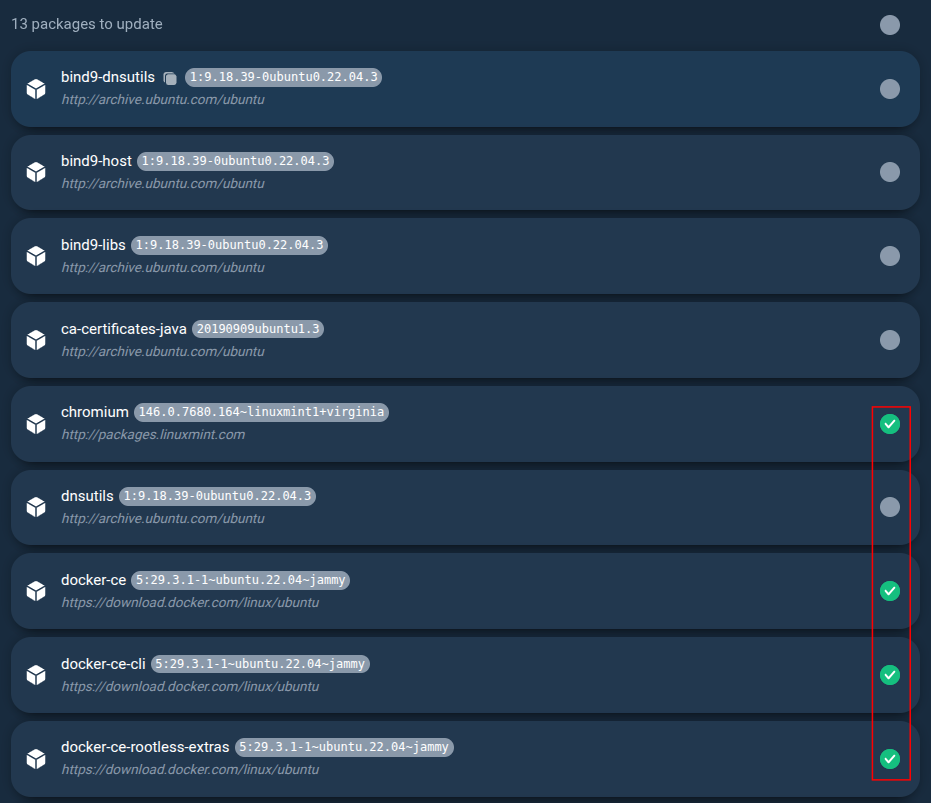
Info
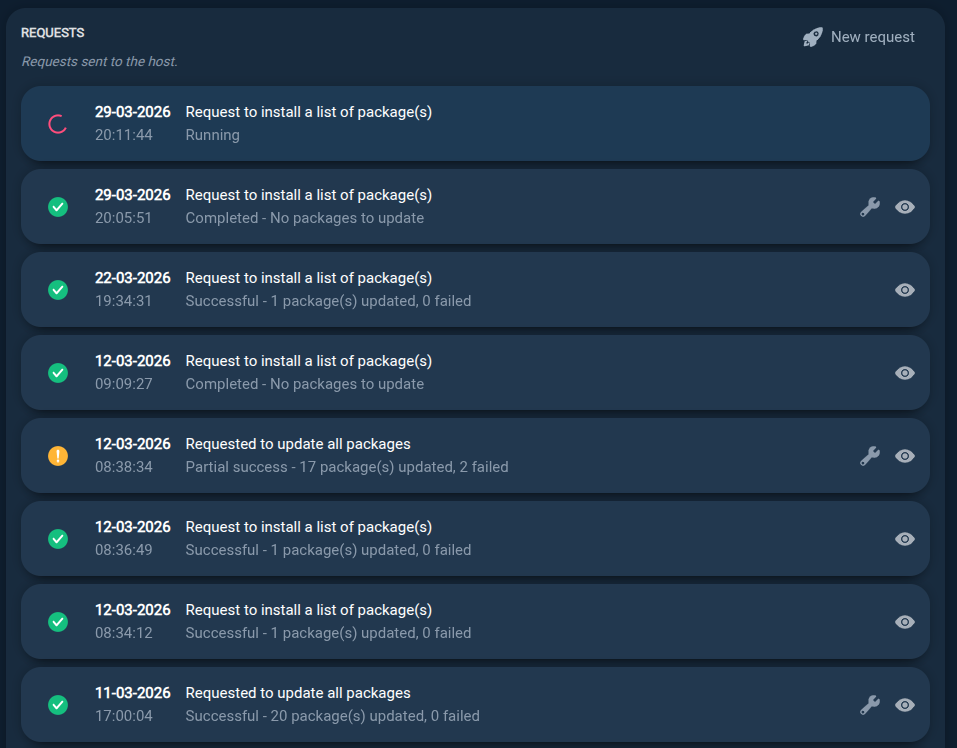
You can view the running requests and their status on the host details page.
Profiles
The Profiles panel provides a way to create and manage configuration profiles for client hosts, including which repositories they should have access to and which packages they should exclude from their package updates (for example, critical packages).
Deploying profile configuration on client hosts is possible by using a client-side tool like linupdate.
Create a new profile
From the HOSTS tab:
Step 1: Click the Profiles button to open the MANAGE PROFILES panel.

Step 2: Specify the name of the profile you want to create.

Step 3: Once the profile has been created, you can edit its configuration and define which repositories this profile will have access to and which packages must be excluded from updates.
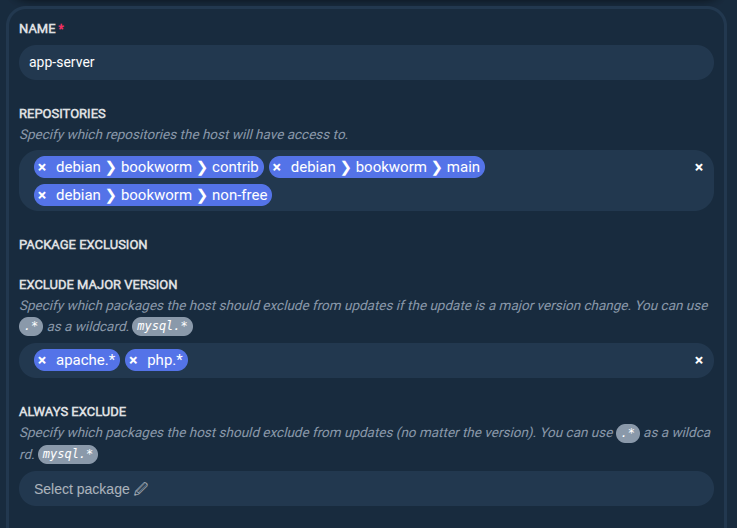
Step 4: Save.
Step 5: Any client host can now use this profile and retrieve its configuration from it (see Set profile with linupdate).
Delete a profile
From the HOSTS tab:
Step 1: Click the Profiles button to open the MANAGE PROFILES panel.
Step 2: Select the profile(s) you want to delete.

Step 3: Use the Delete button to delete. Client hosts that were using this profile will no longer be able to retrieve any configuration from it.