Source repositories
A source repository is a remote repository of packages (deb or rpm) from a third-party publisher (e.g. Debian official repos).
Typically, this is the repository from which you will create a mirror.
Add a source repository manually
From the REPOSITORIES tab:
Step 1: Use the Source repositories button to show the SOURCE REPOSITORIES panel.

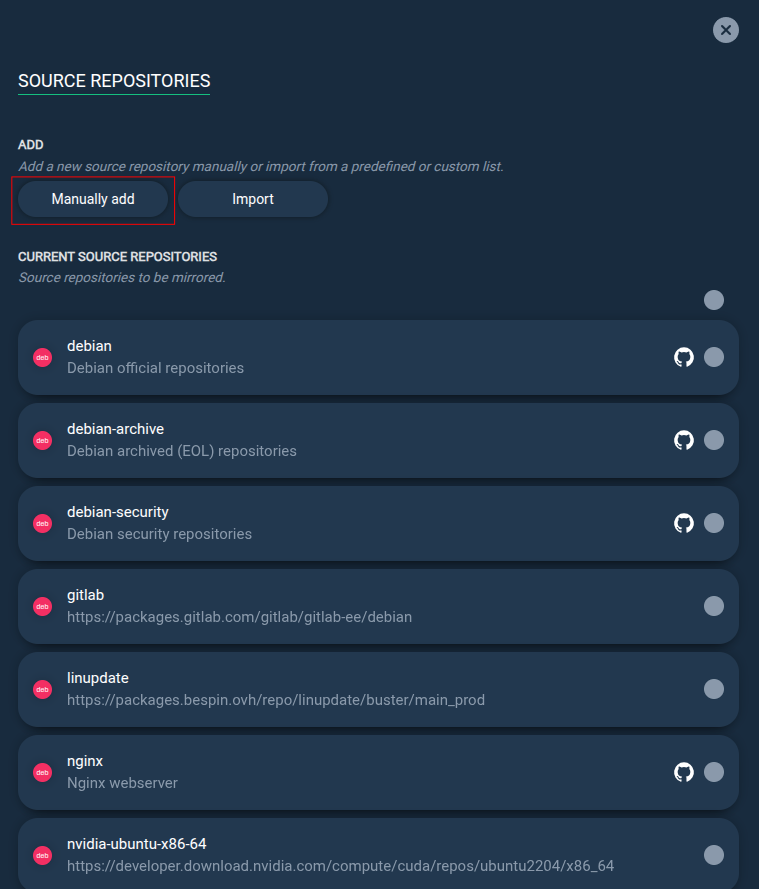
Step 2: Click the Manually add button to add a new source repository.
Step 3: Select the type of repository then define a name to identify the source repository and specify its root URL.
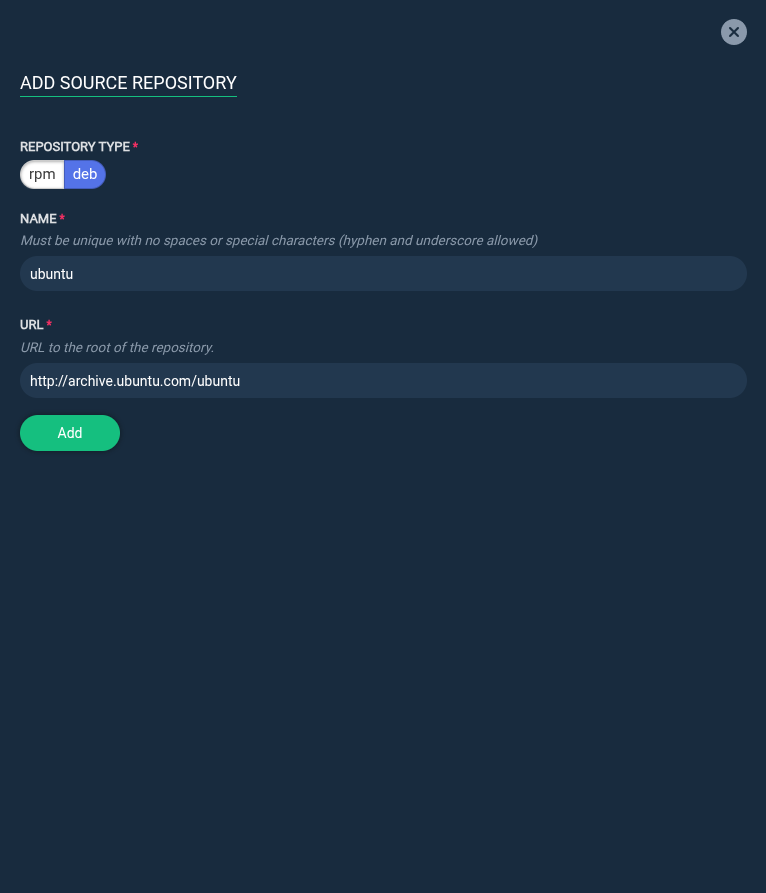
Step 4: Click the Add button to add the source repository to the list of available source repositories.
Step 5: You should now edit the source repository to add more information like distributions and components or release version and import its GPG signing key if any. It is recommended to add as much information as you can as this is used for suggestions when creating a mirror. See Edit a source repository.
RPM repositories URLs information
- Please only provide direct URLs to the source repository. Mirrorlist URLs are not supported.
$releaseverand$basearchvariables inside URLs are supported. They will be automatically replaced during the repo mirroring process by the value you have defined for Release version and Architecture (when creating or updating a repo).-
Examples of supported URLs:
https://dl.fedoraproject.org/pub/epel/$releasever/Everything/$basearchhttp://repo.mysql.com/yum/mysql-5.7-community/el/7/$basearch
DEB repositories URLs information
$distand$componentvariables inside URLs are supported. They will be automatically replaced during the repo mirroring process by the value you have defined for Distribution and Component (when creating or updating a repo).
Import source repositories from predefined or custom lists
From the REPOSITORIES tab:
Step 1: Use the Source repositories button to show the SOURCE REPOSITORIES panel.
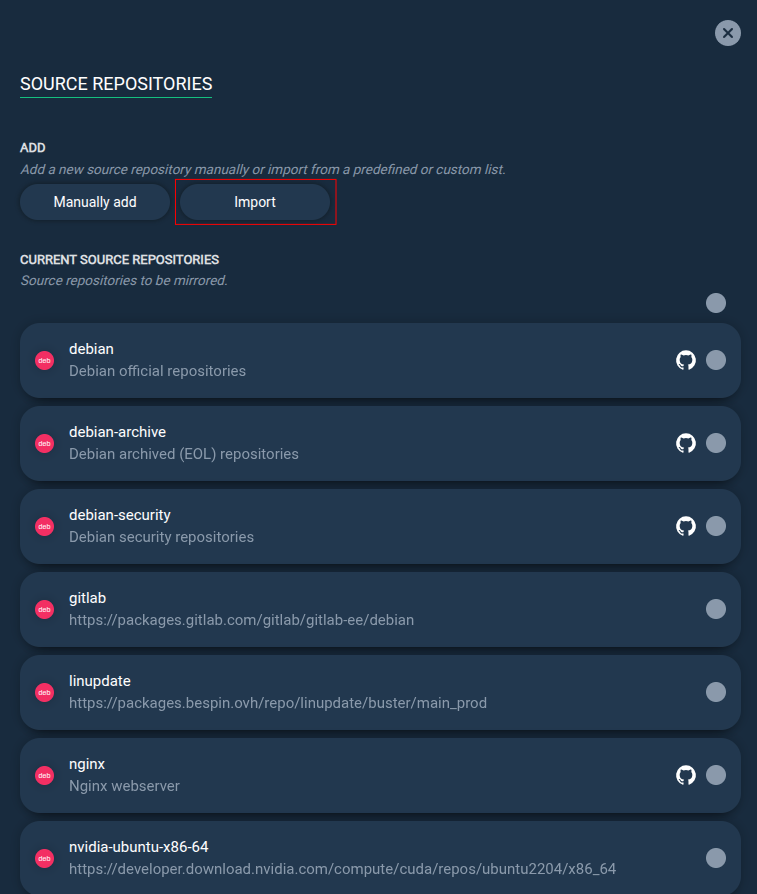
Step 2: Click the Import button.
Step 3: Select the source repositories list you want to import (e.g. Alma Linux official repositories).
Predefined lists content is public and can be seen here. More lists can be added in the future. You can make your own custom list and import it, see Create custom source repositories list.
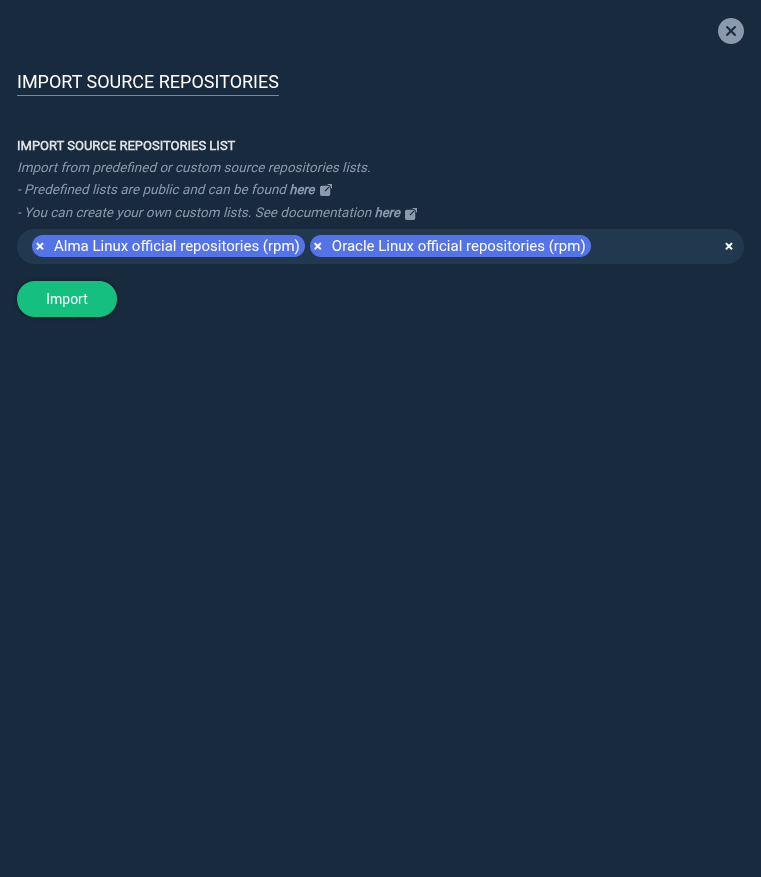
Step 4: Click the Import button to import the selected source repositories.
This will create new source repositories in the list and import their GPG signing keys if any. If the import fails, it may be due to a temporary issue with the keyserver (try again later).
Notes
Importing source repositories will overwrite existing source repositories with the same name.
Create custom source repositories list
You can create your own custom list with all predefined information and import it through the Repomanager web interface.
Custom lists are made for private purposes, they will not be shared with the community. If you want to share your list, you can create a pull request to add it to the predefined lists.
Step 1: Source repositories lists are defined in YAML format and must be named with .yml extension. You can start from templates here deb template / rpm template or take example from existing lists here predefined lists to build your own file.
Step 2: Once you have created your custom file, you will have to copy it inside the container in a specific directory of the repomanager-data volume. You can also import it through the API, for automation purposes, see Import source repositories lists from API.
Here is an example with a custom deb list. From the Docker host, it must be copied into the deb directory under /var/lib/docker/volumes/repomanager-data/templates/source-repositories/:
# Copy
cp my-custom-deb-list.yml /var/lib/docker/volumes/repomanager-data/templates/source-repositories/deb/my-custom-deb-list.yml

# Set permissions
chown 33:33 /var/lib/docker/volumes/repomanager-data/templates/source-repositories/deb/my-custom-deb-list.yml
chmod 640 /var/lib/docker/volumes/repomanager-data/templates/source-repositories/deb/my-custom-deb-list.yml
Step 3: Your custom list is now ready for import through the web interface:
Step 4: Click the Import button to import the source repositories from your custom list.
Import source repositories lists from API
You can import source repositories lists through the API, for automation purposes. This can be helpful for repositories that require frequent updates, like SSL authentication certificates updates.
Step 1: First create or update your custom list in YAML format, see Create custom source repositories list.
Step 2: Generate an API token from an admin account, if not already done, see API key.
Step 3: Use the following API endpoint to import the list:
curl --fail-with-body --post301 -L -s -X POST -H "Authorization: Bearer <API_KEY>" -F "template=@<PATH_TO_CUSTOM_LIST_FILE>" https://<REPOMANAGER_FQDN>/api/v2/source/<TYPE>/import/
Replace the following placeholders:
| Placeholder | Description |
|---|---|
<API_KEY> |
Your API key |
<PATH_TO_CUSTOM_LIST_FILE> |
The path to your custom list .yml file |
<REPOMANAGER_FQDN> |
Repomanager URL |
<TYPE> |
The type of source repositories list you want to import (deb or rpm) |
The API will return a JSON response with 201 status code if the import was successful. Otherwise it will return an error message with 400 status code:
Edit a source repository
From the REPOSITORIES tab:
Step 1: Use the Source repositories button to show the SOURCE REPOSITORIES panel.
Step 2: Click a source repository to edit it.
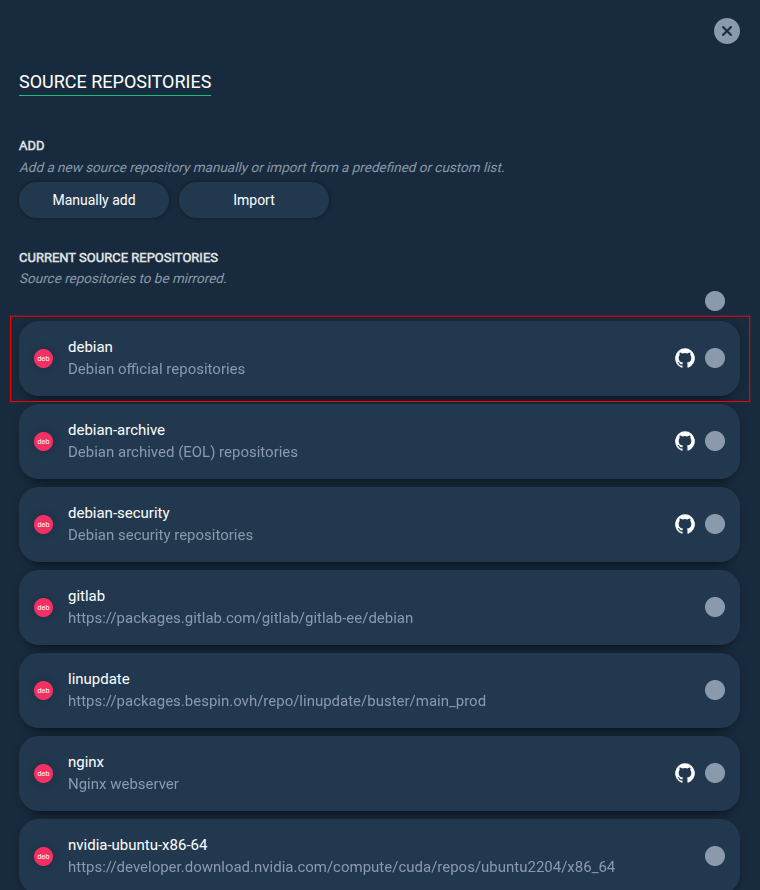
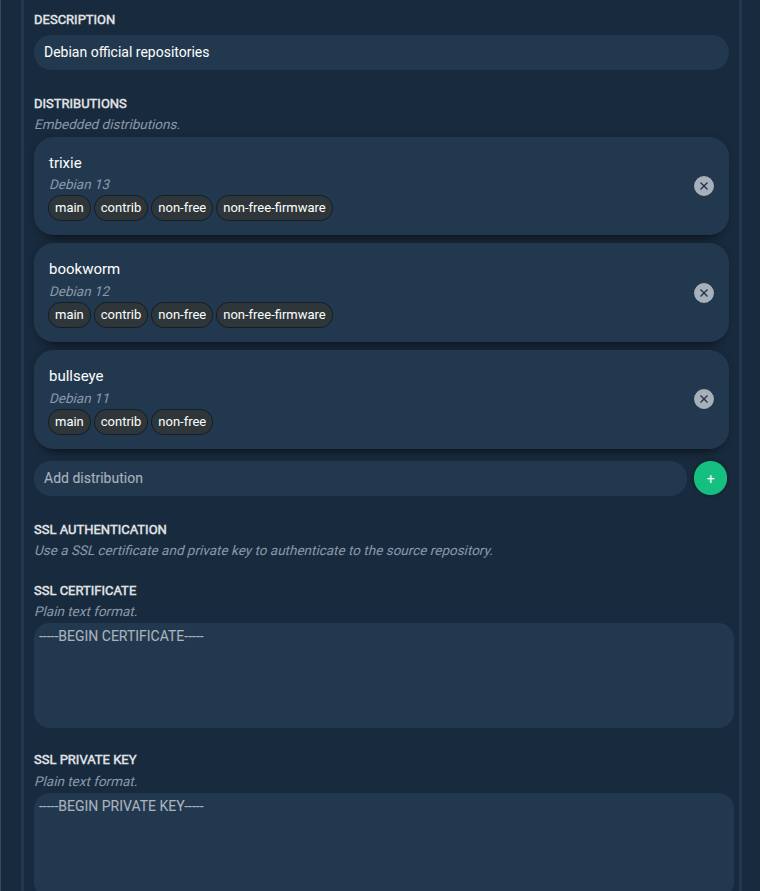
Step 3: Update the source repository information, like distributions and components or release version.
Import their GPG signing key if any.
It is recommended to add as much information as you can as this is used for suggestions when creating a mirror.
Notes
You can provide an SSL certificate and private key to authenticate to the source repository. This is useful if the source repository access is protected (for example, Red Hat official repositories cdn.redhat.com require a private key/certificate to access them).
Delete a source repository
From the REPOSITORIES tab:
Step 1: Use the Source repositories button to show the SOURCE REPOSITORIES panel.
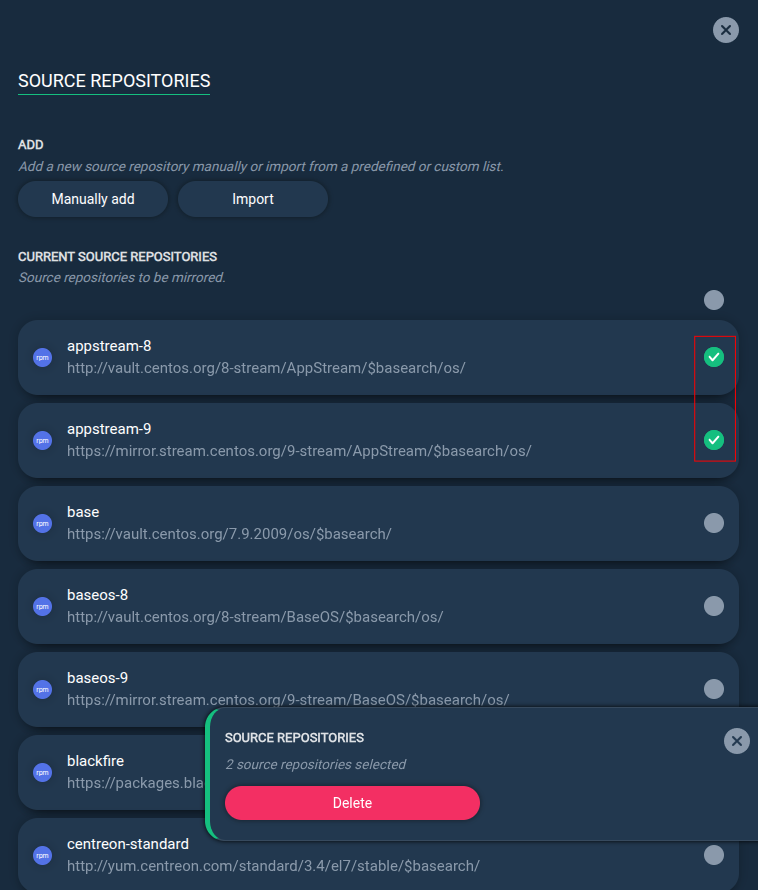
Step 2: Select the source repository you want to delete and click the Delete button.
Notes
GPG signing key(s) related to the source repository will not be deleted.
Import a source repository GPG signing key
From the REPOSITORIES tab:
Step 1: Use the Source repositories button to show the SOURCE REPOSITORIES panel.
Step 2: Click the source repository to edit it.
- If it is a
debrepository, click the distribution you want to import the GPG signing key for. - If it is a
rpmrepository, click the release version you want to import the GPG key for.
Step 3: Scroll down to IMPORT GPG KEY then paste the GPG key URL, fingerprint or plain text.
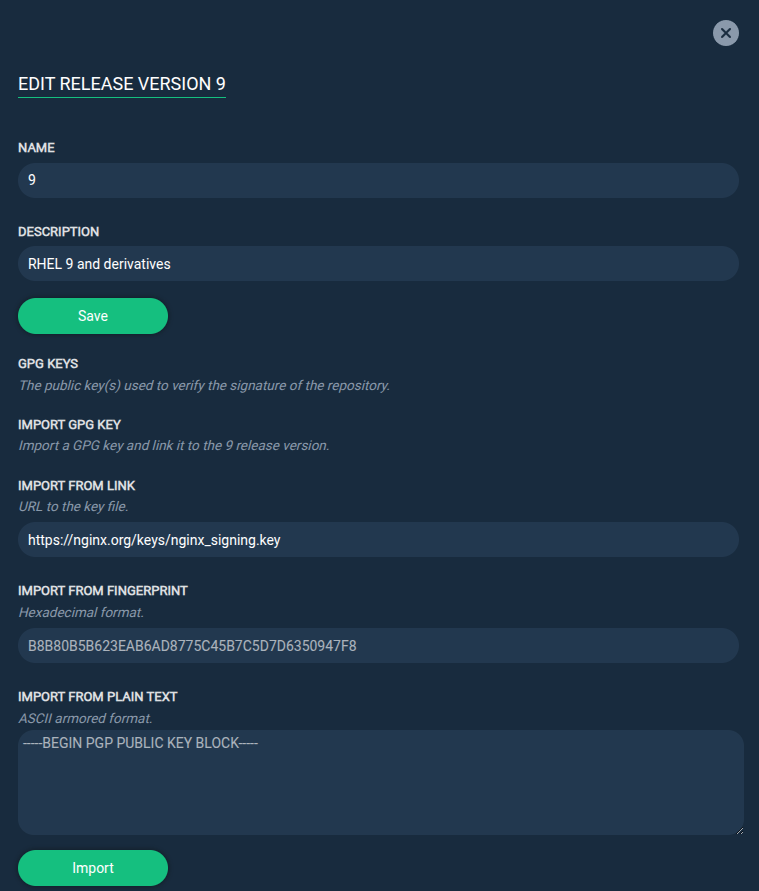
Step 4: Click the Import button to import the GPG key.
Non-compliant deb source repositories
Some .deb repositories do not follow the standard layout (<root_url>/dists/<distribution>/...) and causes issues when trying to sync them with Repomanager. For example, repositories with packages and metadata stored directly under the root URL (<root_url>/xxx.deb) will fail to sync.
If you encounter such a repository, you can try to enable the NON-COMPLIANT REPOSITORY parameter when editing the source repository. Repomanager will try to sync from the root url without adding the /dists/<distribution>/ part.
If it still does not work, please open an issue on GitHub with the repository details so it can be investigated and fixed if possible.
Use case: Redhat repositories
Related issue: https://github.com/lbr38/repomanager/issues/169
To be able to sync Red Hat repositories (under cdn.redhat.com), you will need a Red Hat 8 or Red Hat 9 host/server with a valid subscription (see https://access.redhat.com/solutions/253273)
Once your host is registered, you should have access to Red Hat rpm repositories (you can try with dnf update).
Just for you to understand: Red Hat repositories are private and only accessible with a certificate and private key (this is what the subscription provides). Now that you are registered, you can retrieve the certificate and private key content and import them into Repomanager to be able to sync Red Hat repositories, see below.
From your registered host, retrieve the certificate, private key and Red Hat CA certificate content. You can find their location in /etc/yum.repos.d/redhat.repo:
Simply cat the content of each file and copy/paste it to a text editor (lines from -----BEGIN PGP PUBLIC KEY BLOCK----- to -----END PGP PUBLIC KEY BLOCK-----).
cat /etc/rhsm/ca/redhat-uep.pem
cat /etc/pki/entitlement/733946906105629479-key.pem
cat /etc/pki/entitlement/733946906105629479.pem
You can now manually import the certificate, private key and CA certificate content into Repomanager (see the Notes under Edit a source repository) or automate the import with the API, see Import source repository through the API.
Import source repository through the API
You can use the following Python script to import source repository through the Repomanager API. This can be useful to automate the import or the update of source repositories.
This can be useful for repositories that frequently update their authentication certificates, like Red Hat official repositories. You can schedule this script to run periodically (e.g. with a cron job) to keep the source repository up to date with the latest certificates and private keys, which is required to be able to sync repositories that require SSL authentication.
Step 1: Install python3 dependencies on the host where you will run the script.
Step 2: Download the script.
Step 3: Prepare your own YAML template or use an existing one (for example Redhat template).
If you intend to update the SSL certificate and private key:
- Make sure the ssl-authentication section exists and is uncommented in the template, otherwise certificates and private key will not be updated.
- Prepare the certificate and private key files on your host.
Step 4: Run the script with the required arguments. You will find below the usage and some examples.
Usage: api-import-from-template.py [OPTIONS]
Options:

  Repomanager:
  --url                          URL to Repomanager. e.g. https://repomanager.example.com
  --api-token                    API token to authenticate to Repomanager

  Template:
  --template-path                Path to the source repository template to import
  --repository-type              Type of repository included in the template (rpm or deb)

  Certificates and private key paths. You can provide direct paths to the files, specify a directory and patterns to match the files or a combination of both
  --certs-dir                    Directory where the certificates are stored
  --certificate-pattern          Pattern to match the certificate in the certs directory. Pattern can be a regular expression (e.g. "*.crt$")
  --private-key-pattern          Pattern to match the private key in the certs directory. Pattern can be a regular expression (e.g. "*.key$")
  --ca-certificate-pattern       Pattern to match the CA certificate in the certs directory. Pattern can be a regular expression (e.g. "*.crt$")
  --certificate-path             Direct path to the certificate
  --private-key-path             Direct path to the private key
  --ca-certificate-path          Direct path to the CA certificate
Example 1: Update the ubuntu source repositories by using a template file:
python3 api-import-from-template.py --url https://repomanager.example.com --api-token ak_xxxxxxxxxxxxxxxxx --template-path /tmp/templates/ubuntu.yml --repository-type deb
Example 2: Update the redhat source repositories by using a custom template file and providing a directory with the new certificate and private key, using patterns to match them: